How to Check Your PC's Specs in Under 60 Seconds

Have you ever found yourself staring at your computer screen, wondering just what is ticking away under the hood? Perhaps a new game requires a beefier processor, a video editing suite is crawling at a snail's pace, or you are simply curious whether your trusty machine is ready for tomorrow's software updates. Whatever the reason, checking your computer's specifications doesn't have to require an engineering degree or hours of digging through cryptic menus.
At Home Net Computer Repair, we believe that technology should empower you, not stress you out. Whether you are looking for custom PC building in Seattle or professional data recovery services in Bellevue, demystifying your hardware is the first step toward peak performance.
In this comprehensive, hassle-free guide, we will show you how to check your PC's specs in under 60 seconds using built-in Windows shortcuts. Let's dive in!
Explore Our Methods: The Fastest Ways to View Your Hardware
When you need immediate answers about your RAM, processor, or storage capacity, you don’t need to download sketchy third-party software. Windows has several brilliant, lightning-fast shortcuts built right into the operating system.
Here are the premier methods we recommend to our clients every single day
Method 1: The Settings App (Clean, Clear, and Contemporary)
If you appreciate a modern, visual layout that gets straight to the point without overwhelming you with numbers, the Windows Settings menu is your best friend.
1. Press the Windows Key + I simultaneously on your keyboard to instantly open Settings.
2. Scroll down on the main System tab and click on About.
3. Right there, you will see a comprehensive breakdown of your Device specifications (Processor name, installed RAM, system type) and Windows specifications (Edition, version, and installation date).
This method is wonderfully straightforward for home users and seniors who prefer a clean, uncluttered view of their machine's vital statistics. If you ever need patient, in-person tech tutoring or personalized guidance, our team is always just a phone call away.
Method 2: The System Information Tool (For Deep Technical Insights)
Do you need the nitty-gritty details on your exact motherboard model, BIOS version, or precise storage drive partitions? For a deeper dive, Windows offers the msinfo32 utility.
1. Press the Windows Key + R to open the Run dialog box.
2. Type msinfo32 into the search bar and press Enter.
3. The System Information window will pop up instantly, displaying a massive tree of hardware data ranging from your processor speed to your exact hardware resources.
This tool is invaluable when you are planning an upgrade or working with our technicians to troubleshoot a persistent performance glitch.
Method 3: Task Manager (Live Performance and Component Tracking)
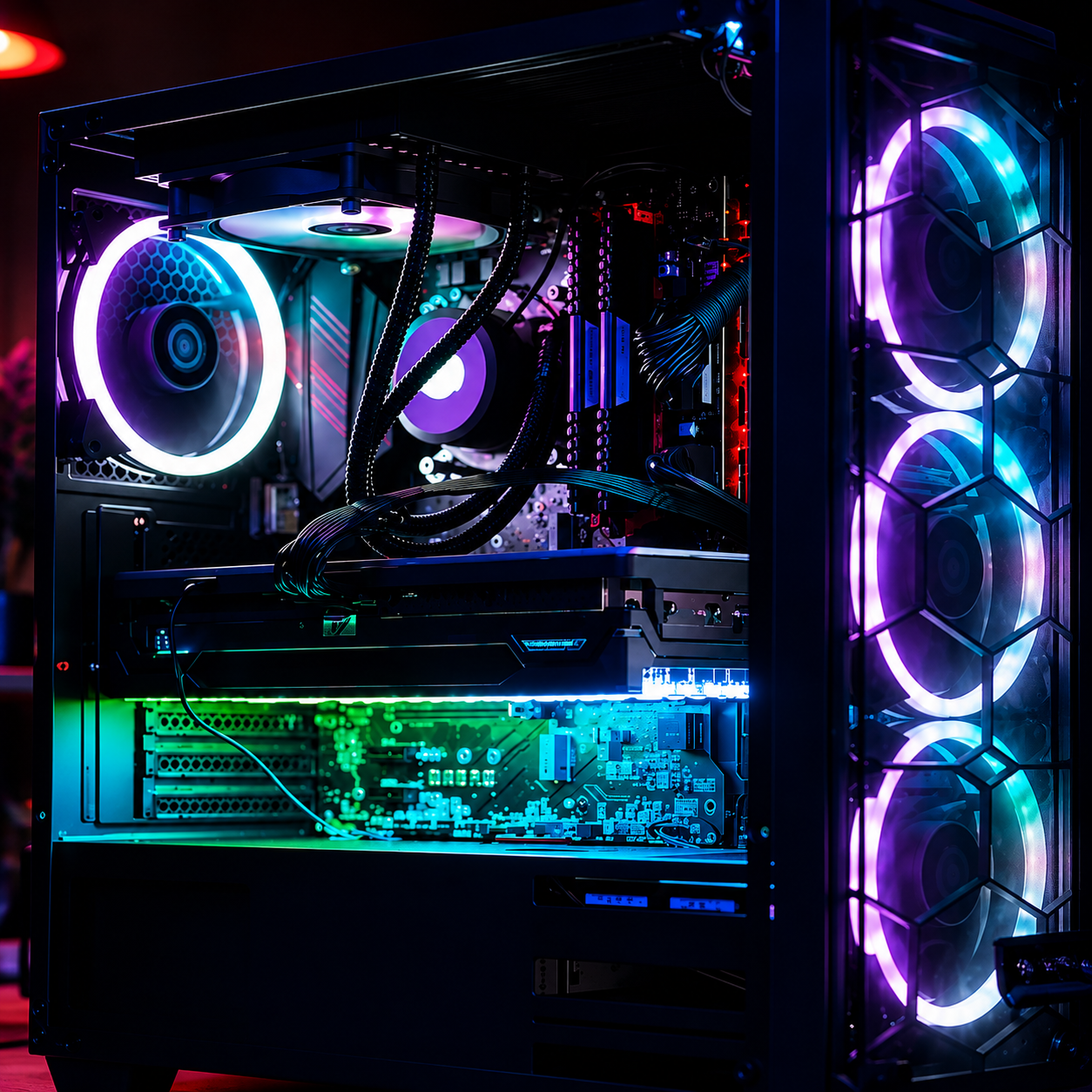
Specs are great on paper, but how are your components performing right now under a real workload? Task Manager gives you a live look at your system's heartbeat.
1. Press Ctrl + Shift + Esc to open Task Manager instantly.
2. Click on the Performance tab (the icon that looks like a small heartbeat graph on the left-hand sidebar).
3. Select CPU, Memory, Disk, or GPU to view real-time utilization, speeds, and hardware model numbers.
Whether you are checking if your graphics card has enough VRAM for an upcoming gaming marathon or evaluating whether your memory is maxed out, Task Manager puts the power directly in your hands. If your rig is struggling to keep up, our specialists in custom PC building in Kirkland and Redmond can help you design a bespoke upgrade tailored to your exact budget.
Utilize Our Expertise: What Do Your Specs Actually Mean?
Knowing your numbers is only half the battle; understanding what they mean for your daily routine is where true peace of mind begins. Let's break down the core components you just uncovered:
- Processor (CPU): Often called the "brain" of your computer, measured in gigahertz (GHz). A faster CPU handles complex multitasking and calculations with effortless grace.
- Random Access Memory (RAM): Your computer's short-term memory. 8GB is standard for basic web browsing, while 16GB to 32GB+ is essential for seamless gaming and professional video editing.
- Storage (HDD vs. SSD): Solid State Drives (SSDs) are lightning-fast and make booting Windows take seconds, whereas traditional Hard Disk Drives (HDDs) offer massive capacity at a slower pace.
- Graphics Card (GPU): The powerhouse responsible for rendering images, video editing effects, and immersive 3D gaming worlds.
Craft Your Experience: When to Upgrade vs. When to Replace
Now that you know your PC's specifications, you might be asking: Is it time for an upgrade, or should we look at a brand-new custom build?
Every user has unique needs. A casual home user streaming movies needs vastly different hardware than a competitive gamer or a local small business owner running intensive point-of-sale software. That is why we champion personalized solutions with transparent, upfront pricing and zero hidden fees.
If your hardware is showing its age, you don't have to navigate the complex world of computer components alone. We come right to your door with convenient pick-up and return services, ensuring your tech journey is completely hassle-free from start to finish.
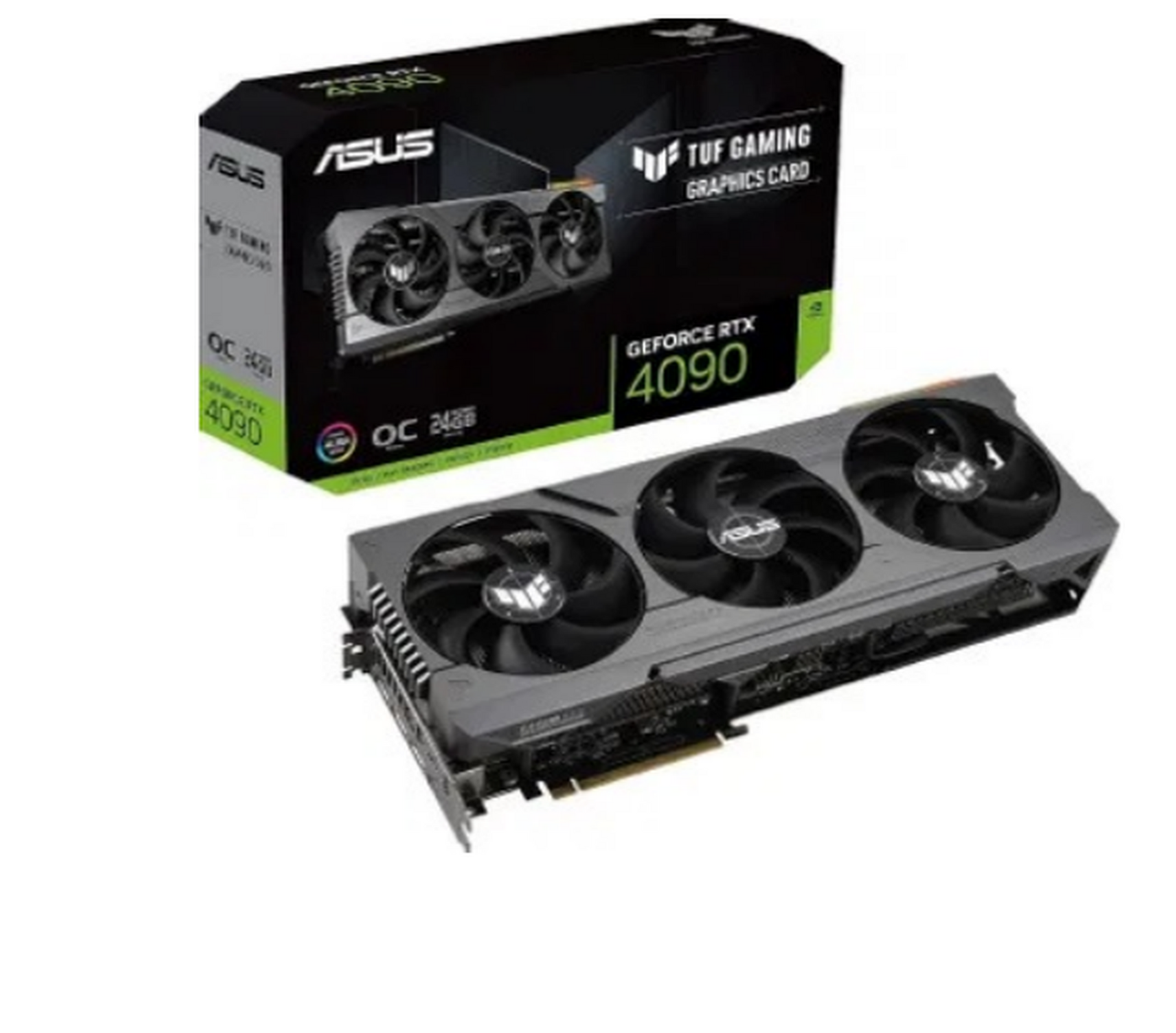
Get in Touch With Our Family Team
Checking your PC specs is just the beginning of keeping your digital life running at peak performance. Whether you need a quick RAM upgrade, professional diagnostics, or a stunning new custom rig built with top-quality parts, Home Net Computer Repair is here to make technology less stressful and more accessible.
Reach out to us today to schedule your pick-up or consultation. Let us handle the technical details so you can get back to what matters most!