How to Factory Reset Your Computer Without Losing Everything
September 9, 2026

Is your trusty computer feeling sluggish, bogged down by mysterious errors, or freezing up when you need it most? We’ve all been there. There comes a time in every machine's lifecycle when a fresh start is the premier solution to restore that lightning-fast, day-one performance you fell in love with. But the thought of a factory reset often triggers an instant wave of anxiety: What will happen to my family photos, my vital tax documents, and my favorite playlists?


Take a deep breath. You don’t have to sacrifice your treasured memories or important work to give your PC a new lease on life. At Home Net Computer Repair, we believe that optimizing your technology should be a stress-free, seamless experience rather than a digital catastrophe. Whether you are prepping your machine for peak gaming performance or simply clearing out years of accumulated digital clutter, we are here to walk you through how to execute a pristine factory reset while keeping your personal universe completely intact.

Understand What a Reset Keeps and Clears

Before diving into any system modifications, clarity is your best ally. Modern operating systems like Windows 10 and Windows 11 offer a robust feature called Reset this PC, designed precisely to give you the best of both worlds.

When you select the "Keep my files" option during a reset, here is what happens behind the scenes: 

  • What stays safe: Your personal user folders: including Documents, Pictures, Desktop, Downloads, and Videos: remain untouched. Your core user profile and custom account settings are preserved.
  • What gets cleared: Installed desktop applications, non-built-in software (like Microsoft Office, Adobe suites, and games), and customized system configurations are wiped clean.

Think of it as moving out of a cluttered house: you take all your precious furniture and family photo albums with you, but you leave behind the peeling wallpaper and old curtains so you can redecorate with a fresh, pristine palette.
Smiling man in a blue shirt outdoors with a blurred green background

Secure Your Digital Life With a Backup First

Even though the "Keep my files" feature is remarkably reliable, true peace of mind comes from preparation. In the world of technology, having a redundant backup is the gold standard of trustworthy stewardship. Before initiating your reset, take a few moments to safeguard your digital footprint: 

1. Copy critical files to an external drive or cloud storage: Make an extra copy of your most important folders. You can never be too safe when dealing with irreplaceable family photos or critical business spreadsheets. 


2. Export app-specific data: Remember that browser bookmarks, email archives, and offline game saves often live inside specific application folders. Export your browser bookmarks and verify your game saves are synced to the cloud.


3. Inventory your software: Make a quick list of the software licenses and applications you currently use so you can easily reinstall them afterward.

If you are ever unsure about how to properly secure your data or if your machine is already acting unpredictably, our family-owned team is always ready to assist. You can explore our professional data recovery services for expert guidance tailored to your specific needs.

3. How to Safely Perform a Hard Shutdown 

If your keyboard commands are unresponsive and your computer remains entirely locked up, it is time for a controlled hard shutdown. While turning off your computer by holding the power button should never be your first resort, doing it correctly prevents data corruption and hardware stress. 

1. Press and Hold: Press the physical power button on your desktop or laptop for 5 to 10 seconds until the power light cuts off completely.

2. The Waiting Period: Once the machine is off, wait at least 30 seconds to let all electrical components fully reset and discharge. 

3. Power Back Up: Press the power button once more to boot your system normally.

If you are using a Mac and it completely refuses to budge, press and hold Command + Control + Power until the screen goes dark, wait a few moments, and press the power button to restart.

Execute Your Reset in Windows (When Your PC Still Boots) 

If your computer is booting up normally and you can access your desktop, performing a reset is remarkably straightforward. Follow these simple, step-by-step instructions to revitalize your system:

Glowing microchip on a blue circuit board with electric light effects

1. Open Settings: Press the Windows Key + I on your keyboard, or click the Start menu and select the gear-shaped Settings icon. 

2. Navigate to Recovery:

  • On Windows 11, go to System > Recovery.
  • On Windows 10, go to Update & Security > Recovery.

3. Initiate the Reset: Under the "Reset this PC" section, click the Reset PC (or Get started) button.

4. Choose Your Option: When prompted, select "Keep my files". Crucial note: Avoid selecting "Remove everything" unless you intend to completely wipe the hard drive.

5. Select Reinstallation Method: You will be asked how you would like to reinstall Windows:

  • Cloud download: Downloads a fresh, pristine copy of Windows directly from Microsoft. This is our top recommendation if your current system files are corrupted or sluggish.
  • Local reinstall: Reinstalls Windows using the files already stored on your machine. It is faster if you have limited internet bandwidth.

6. Review and Confirm: Windows will present a clear summary of what will happen. Click Reset and let your computer do the heavy lifting. Ensure your laptop or desktop is plugged into a stable power source throughout the process!

Navigate Recovery When Windows Won't Boot

What happens if your computer is stuck in a boot loop or refuses to reach the desktop entirely? Don't panic. You can still access the Windows Recovery Environment (WinRE) to save your system. 

  • Trigger Recovery: If you can reach the sign-in screen, hold down the Shift key while clicking Restart in the power menu. If the computer won't boot at all, interrupting the startup sequence three times (by powering down during the boot logo) will automatically trigger the automatic repair environment.
  • Navigate to Reset: Once inside WinRE, select Troubleshoot > Reset this PC.

Select Keep My Files: Choose the file-preservation option, pick your reinstallation method, and follow the on-screen prompts to bring your machine back to life. 

Smiling man in a blue shirt outdoors with a blurred green background

Reclaim Peak Performance and Long-Lasting Reliability

Smiling man in a blue shirt outdoors with a blurred green background

Once your reset is complete, your computer will greet you with a clean, responsive desktop free of background bloatware and sluggish error logs. You can now reinstall your essential applications, knowing your personal documents and treasured photos were safely preserved throughout the entire journey.


However, we understand that technology can sometimes throw unexpected curveballs. If a software refresh isn't quite enough to solve your hardware bottlenecks: or if you are dreaming of upgrading to a custom gaming or video editing rig: you don't have to navigate it alone.


At Home Net Computer Repair, we pride ourselves on transparent pricing, top-quality parts, and a friendly, neighborly approach that puts your mind at ease. Whether you need hardware upgrades, expert troubleshooting, or patient tech tutoring, we are committed to making your digital life effortless.


Ready to experience hassle-free tech support? Reach out to our dedicated team today and let us help you achieve enduring computer performance!

September 8, 2026
Have you ever found yourself staring at your computer screen, wondering just what is ticking away under the hood? Perhaps a new game requires a beefier processor, a video editing suite is crawling at a snail's pace, or you are simply curious whether your trusty machine is ready for tomorrow's software updates. Whatever the reason, checking your computer's specifications doesn't have to require an engineering degree or hours of digging through cryptic menus. At Home Net Computer Repair , we believe that technology should empower you, not stress you out. Whether you are looking for custom PC building in Seattle or professional data recovery services in Bellevue , demystifying your hardware is the first step toward peak performance. In this comprehensive, hassle-free guide, we will show you how to check your PC's specs in under 60 seconds using built-in Windows shortcuts. Let's dive in!
September 7, 2026
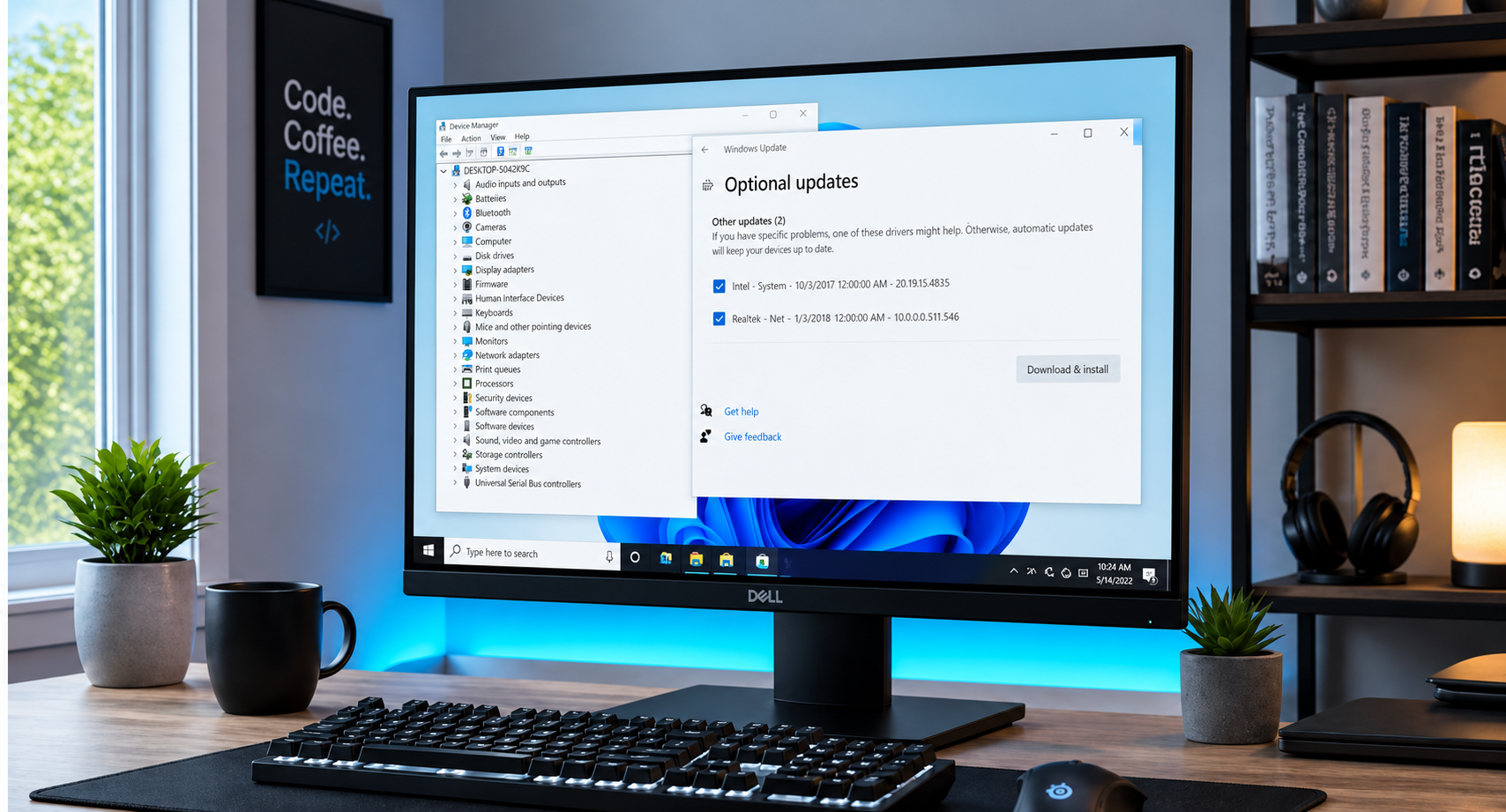
Have you ever stared at your computer screen, wondering why your favorite game stutters or why your audio suddenly cuts out right in the middle of an important video call? When your system starts acting sluggish or peripherals refuse to cooperate, the culprit is often hiding in plain sight: outdated or corrupted device drivers. For many home users, gamers, and small business professionals, the very word "drivers" evokes images of endless pop-ups, confusing third-party software scams, and the lingering fear of breaking a perfectly good machine. But keeping your system running at peak performance doesn’t have to be a stressful ordeal. At Home Net Computer Repair, we believe in making technology accessible, transparent, and completely hassle-free. Whether you are powering a bespoke gaming rig with a high-end ASUS TUF Gaming GeForce RTX 4090 or maintaining a dependable home laptop, understanding how to update your drivers the right way is the secret to enduring hardware longevity. Let’s demystify the process together.
September 4, 2026
There is nothing quite like the rush of powering on a brand-new gaming rig for the first time. The fans spin up to life, vibrant RGB glows through tempered glass, and your favorite titles load in the blink of an eye. But if you peer behind that gorgeous glass side panel: or look down at the tangle of wires pooling beneath your desk: does the magic fade a little? We completely understand. A messy web of cables isn't just an eyesore; it chokes vital airflow, traps frustrating dust bunnies, and turns routine component upgrades into an absolute headache. At Home Net Computer Repair , we believe that building or owning a premier gaming rig should be a seamless, stress-free experience from start to finish. Whether you're assembling a dream machine from scratch or looking to revitalize your current battle station, mastering cable management is the ultimate secret to achieving peak performance, enduring reliability, and a truly professional aesthetic. Let’s dive into our comprehensive guide on how to cable manage your gaming PC like an industry expert.
September 3, 2026
Are you tired of constantly alt-tabbing between spreadsheets, reference documents, and communication apps on a cramped single screen? Upgrading to a dual-monitor workspace is one of the premier ways to supercharge your productivity, elevate your gaming experience, and bring an unrivaled sense of calm and organization to your daily workflow. Yet, for many home users, remote professionals, and passionate gamers, the thought of untangling a rat's nest of wires, dealing with flickering displays, or figuring out mysterious graphics card ports can feel entirely overwhelming. At Home Net Computer Repair , we believe that technology should empower you, never stress you out. Whether you are building a custom gaming and video editing rig or simply trying to streamline your home office for maximum efficiency, we are here to make the process completely seamless and hassle-free. In this comprehensive guide, we’ll walk you through our proven, step-by-step approach to setting up a breathtaking dual-monitor workspace: without the headache.
September 2, 2026
There is a very specific kind of panic that sets in when your computer screen suddenly turns into an unmoving digital statue. You click frantically, you tap the spacebar, you whisper sweet nothings to the monitor: and nothing happens. The cursor mocks you by staying frozen in place, or worse, the dreaded spinning wheel of doom takes over your desktop. If you are currently staring at a locked-up screen wondering, "Why is my computer frozen, and what on earth do I do now?" take a deep breath. You are in good company, and more importantly, you are in safe hands. Here at Home Net Computer Repair , we believe that technology should empower your day, not stall it. Whether you are working on an important presentation, managing your household budget, or settling in for a relaxing evening of gaming, a sudden freeze can feel like a major roadblock. In this comprehensive guide, we are going to walk you through our proven, stress-free methods to safely unstick your computer, restore peak performance, and get you back to what matters most.
September 1, 2026
There is nothing quite as frustrating as lining up the ultimate shot, executing a flawless combo, or making a game-winning push in your favorite competitive multiplayer game, only for a sudden lag spike to freeze your screen. In a split second, your character is eliminated, your team is defeated, and you are left staring at your monitor wondering what went wrong. If you have ever experienced this heart-sinking moment, you know that your gaming experience relies on more than just high-end hardware and lightning-fast reflexes, it depends entirely on the quality and stability of your network connection. Here at Home Net Computer Repair , we spend our days building custom rigs, optimizing systems, and helping local gamers across our community achieve peak performance. One of the most common questions we hear from passionate players is: Should I plug in an Ethernet cable, or is modern Wi-Fi good enough for gaming? To help you make the best decision for your setup, we are breaking down the technical realities of Ethernet versus Wi-Fi, examining how latency, jitter, and packet loss affect your gameplay, and sharing our professional recommendations for a seamless, stress-free gaming experience.
August 30, 2026
Have you ever experienced that heart-dropping moment when your screen freezes, your computer refuses to boot, or an essential document vanishes into the digital ether? We have all been there, staring blankly at a monitor and wondering if years of family photos, critical tax documents, and cherished projects are gone forever. It is an unnerving feeling that no home user, gamer, or small business owner should ever have to endure. At Home Net Computer Repair, we believe that safeguarding your digital life should feel effortless, dependable, and completely stress-free. While data disasters can strike without warning: whether from unexpected hardware failure, a stealthy malware infection, or simply an accidental click: you don't have to live in fear of losing your memories. By establishing a robust, automated backup routine, you can truly "set it and forget it," ensuring your precious files are protected around the clock with unrivaled peace of mind. In this comprehensive guide, we will walk you through the premier methods for automating your backups on both Windows and macOS, share industry-proven best practices, and explain how our family-owned team can help you build an impenetrable safety net for your technology.
August 28, 2026
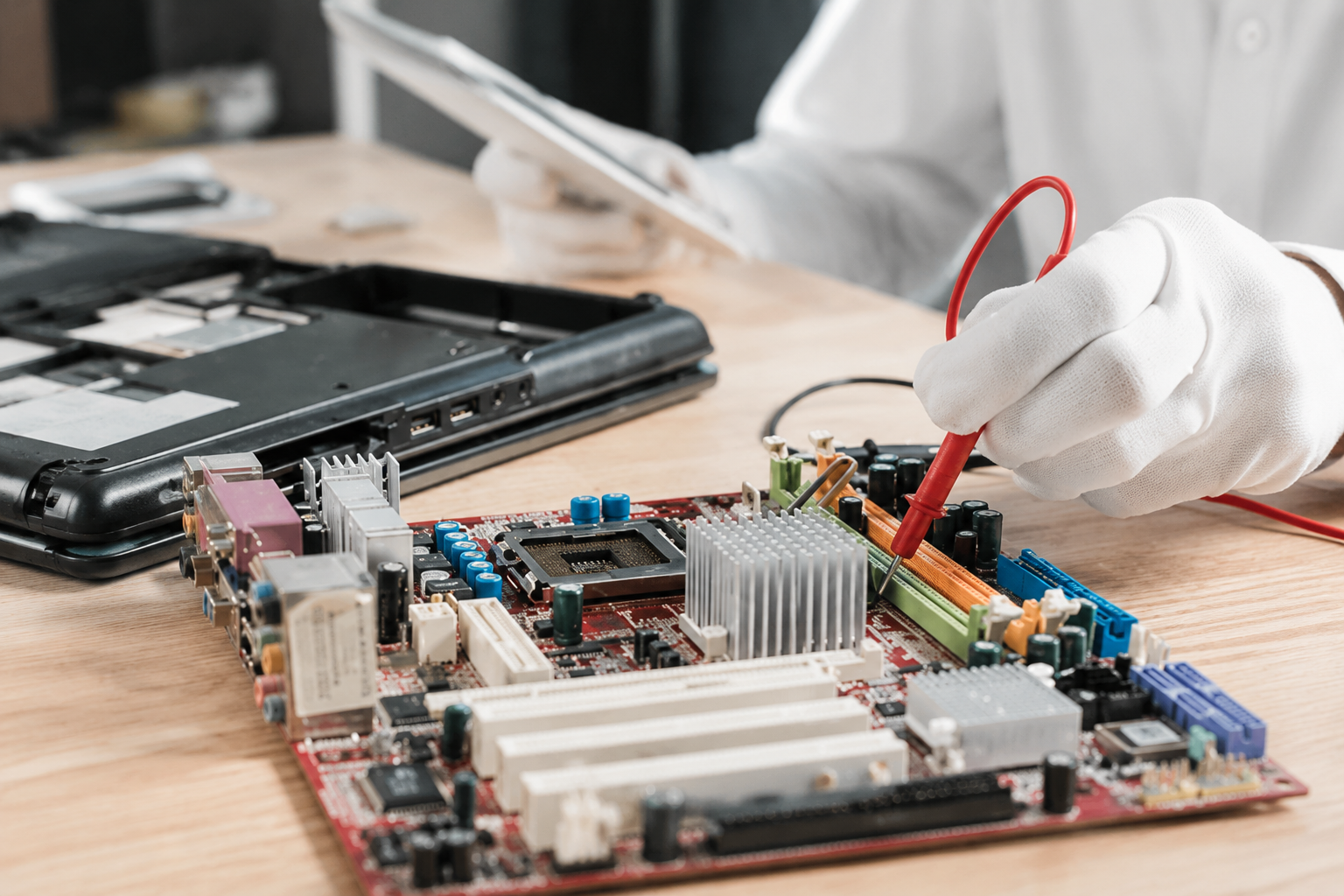
Have you ever pressed your power button, only to be met with absolute, eerie silence: or worse, a chaotic loop of random reboots that leaves you staring at a blank screen in disbelief? When your computer starts acting up in mysterious ways, it’s easy to point the finger at a failing hard drive or a glitchy Windows update. But what happens when the heart of your system: the motherboard: begins to give out? At Home Net Computer Repair , we know how stressful and disruptive tech trouble can be when you rely on your PC for work, gaming, or staying connected with loved ones. As your knowledgeable neighborhood tech experts, we believe in taking the mystery out of computer hardware. Today, we are exploring the top indicators of motherboard failure, how to diagnose them, and why you don't have to face technical headaches alone.
August 27, 2026
Few moments in the digital age induce quite the same level of sudden panic as pressing your power button only to be greeted by a black screen, an endless boot loop, or an ominous error message. When your storage drive gives up the ghost, your first thought is rarely about hardware architecture, it is about your irreplaceable family photos, critical tax documents, bespoke video editing projects, and years of cherished memories. If you are currently facing this heart-dropping scenario, take a deep breath. You might be asking yourself: Can you recover files from a dead SSD? The short answer is a resounding yes in many cases, but the path to recovery depends heavily on whether your drive is experiencing a logical glitch or a catastrophic hardware failure. At Home Net Computer Repair, we believe that technology should empower your life rather than stress you out. As your knowledgeable neighborhood tech partner, we are here to provide clear, honest guidance, transparent pricing, and stellar, stress-free solutions. Let's walk through how to diagnose the situation, what you can safely do at home, and when it's time to let our dedicated family team step in with our premier pick-up and return service.
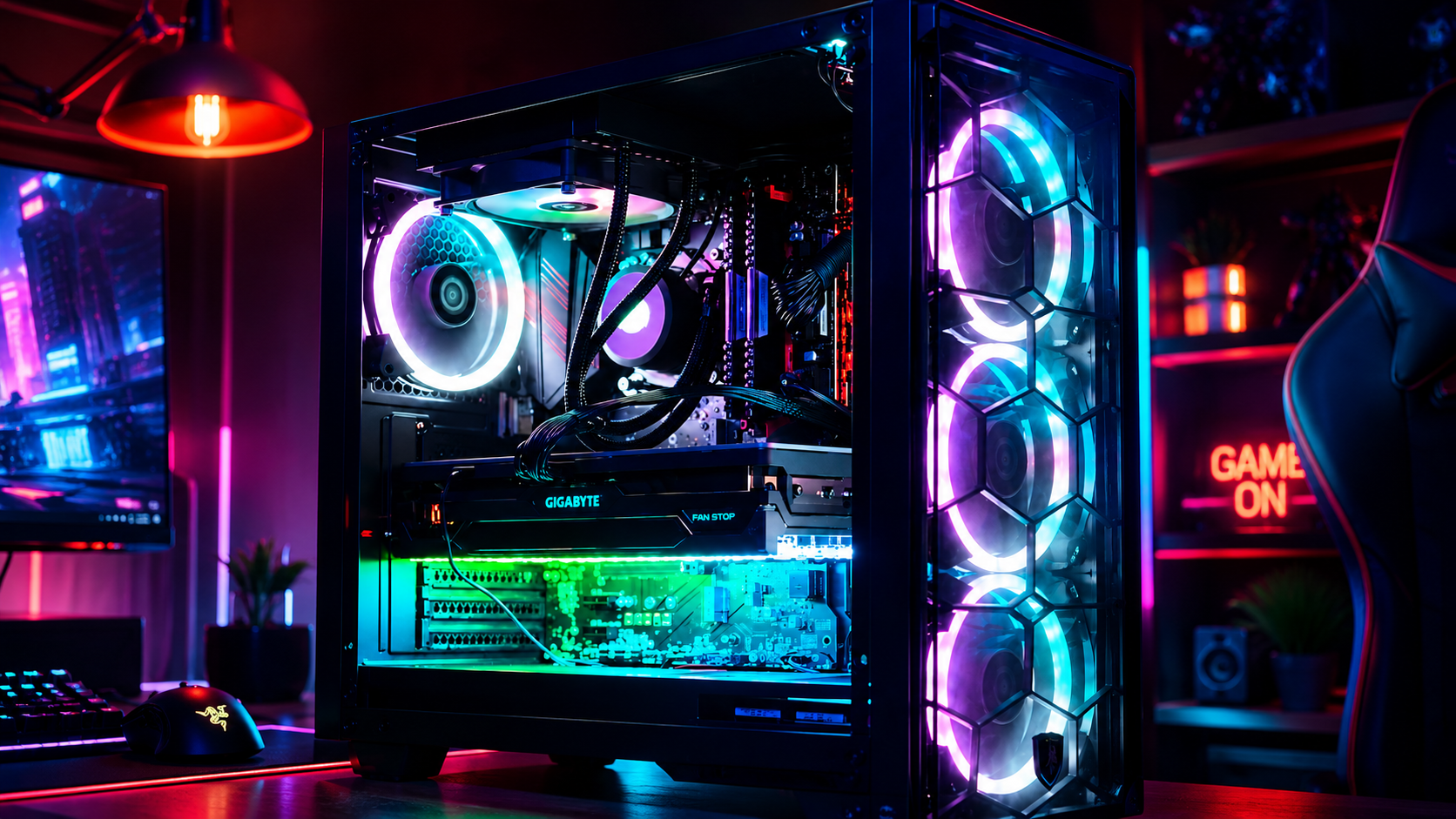
Neon-lit gaming PC setup with glowing RGB fans and a red “GAME ON” sign
August 26, 2026
Have you ever noticed your favorite machine sounding a bit like a jet engine during a routine web browsing session, or perhaps lagging just when you need it most? We’ve all been there, staring at a frozen screen, wondering why our trusty digital companion is suddenly moving at a snail's pace. Dust accumulation, thermal throttling, and cluttered operating systems are often the silent culprits behind these frustrating hiccups. At Home Net Computer Repair, we believe that maintaining your technology shouldn't feel like an overwhelming chore. As your knowledgeable neighborhood tech partner, we’re dedicated to bringing you stress-free, seamless computing experiences. Whether you are running a bespoke gaming rig, managing a busy small business, or simply keeping in touch with loved ones, establishing a proven maintenance schedule is the secret to unlocking peak performance and ensuring long-lasting durability. Let’s dive into our comprehensive guide on how often you should clean your computer, both inside and out, and how a little routine care keeps your hardware running at its absolute best.