Why Is My CPU Overheating? Common Causes and How to Cool It Down
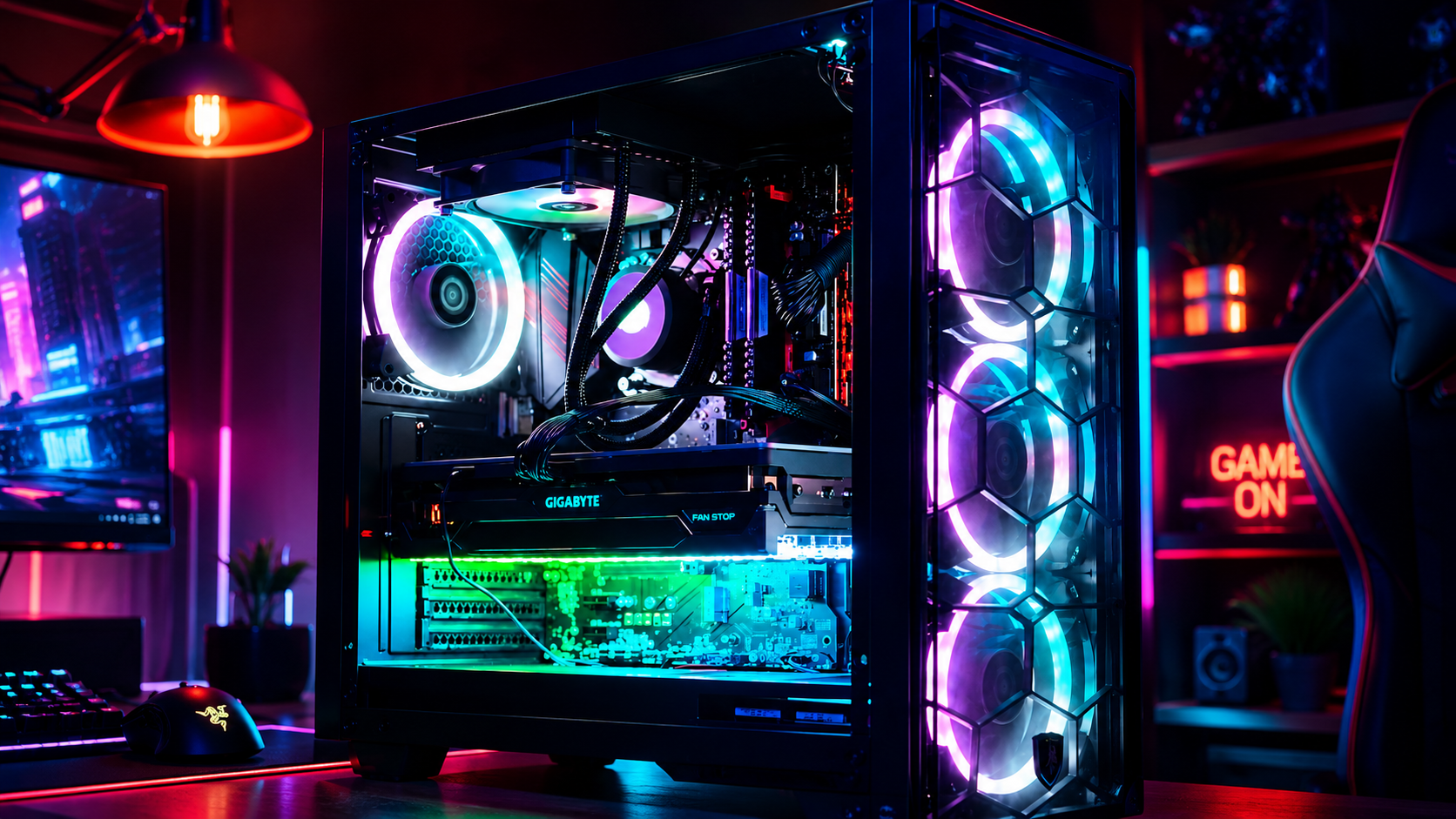
Have you ever settled in for a relaxing evening of high-end gaming or opened your video editing suite to finish a premier project, only for your computer to suddenly sound like a roaring jet engine before crashing to a black screen? That sinking feeling of frustration is all too familiar. When your machine unexpectedly shuts down or stutters during peak performance, you are likely dealing with a classic and stressful culprit: CPU overheating.
At Home Net Computer Repair, we believe that technology should empower your daily life, not add anxiety to it. As your friendly, family-owned neighborhood tech experts, we are committed to making your digital experience completely seamless and stress-free. Whether you are running a bespoke gaming rig, a high-performance content creation workstation, or a reliable family desktop, keeping your processor at peak performance is essential for long-lasting durability.
Let's dive into why your CPU might be running dangerously hot, how you can diagnose the issue, and what proven, transparent steps you can take to bring temperatures back down to earth.
Examine Your System and Recognize the Warning Signs
Before you can solve a heating problem, you need to understand what your machine is telling you. Processors generate immense amounts of electrical energy, and when heat cannot escape efficiently, thermal throttling kicks in: slowing down your clock speeds to prevent catastrophic hardware failure.
Are you noticing sudden stutters during gaming sessions? Do your applications freeze without warning, or do your cooling fans sound like they are working overtime even when you are just browsing the web? These are telltale distress signals. Modern CPUs are engineered to handle demanding workloads, but thermal limits around 80°C to 90°C should never be ignored or routinely exceeded.
When you notice these symptoms, don't panic. Our dedicated team is always here to provide honest guidance and robust solutions tailored to your specific needs and budget. If you want to explore professional upgrades or custom configurations designed with unrivaled precision, take a look at our custom PC building services in Seattle or our custom builds in Bellevue.
Explore Our Core Culprits: Why Your Processor Runs Hot
Why does a once-stellar computer suddenly start baking itself? The root causes generally fall into two categories: internal workloads and external cooling breakdowns. Recognizing these factors helps you address the issue right the first time.
1. Dust Buildup and Blocked Airflow
Over time, desktop cases and laptop vents act like miniature vacuum cleaners, pulling in dust, pet hair, and household debris. When this accumulation blankets your heatsinks and clogs your fan blades, airflow grinds to a halt. The trapped heat has nowhere to go, causing temperatures to skyrocket within minutes.
2. Degraded or Dried-Out Thermal Paste
Thermal paste is the microscopic bridge between your CPU’s integrated spreader and your cooler’s copper base. Over years of thermal expansion and contraction, this paste can dry out, crack, or lose its effectiveness. Without fresh thermal paste, even the most expensive cooler will struggle to transfer heat away from the processor.
3. Inadequate Cooling Hardware or Fan Failures
Sometimes, stock coolers or aging fans simply cannot keep up with modern workloads. If a fan bearing fails, your liquid cooling pump stops circulating coolant, or your cooler's Thermal Design Power (TDP) rating is too low for your upgraded processor, overheating is practically guaranteed.
4. Aggressive Overloading and Overclocking
Pushing your hardware past factory specifications through overclocking delivers thrilling performance boosts, but it exponentially increases heat output. Coupled with background malware, rogue applications, or endless browser tabs, your CPU may be running at 100% capacity longer than it was ever designed to sustain.
Utilize Our Expertise: Practical Steps to Cool Down Your PC
When your system starts running too hot, taking immediate action protects your investment and restores peace of mind. Here is a comprehensive, step-by-step approach to chilling your machine back to optimal temperatures:
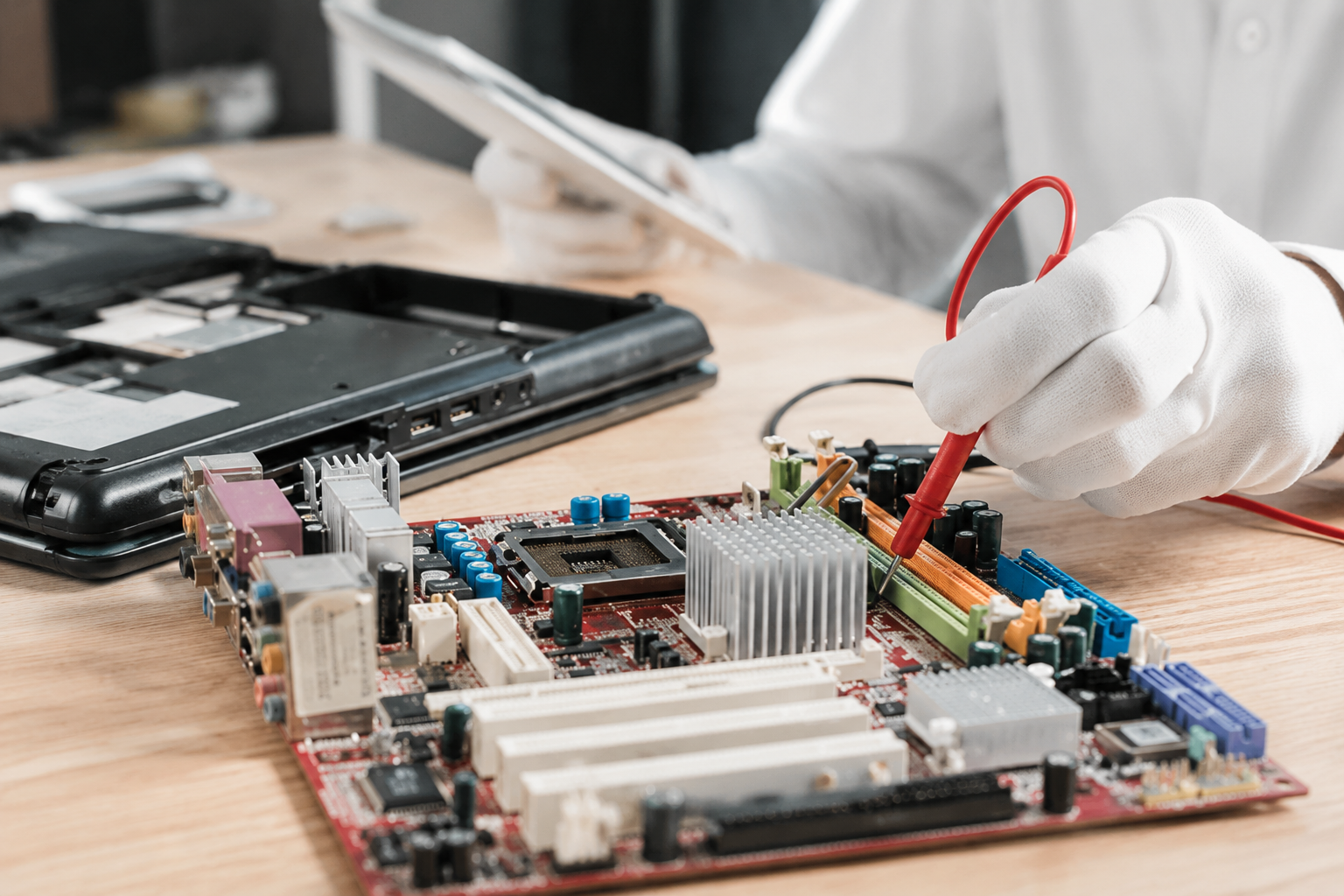
- Stop Heavy Workloads Immediately: Exit resource-heavy games, rendering software, or benchmark tools the moment you suspect thermal distress. If the case feels intensely hot to the touch, power down completely and let the machine rest.
- Clear Out the Dust: Grab a can of compressed air and carefully blow out dust from your case fans, radiator fins, and power supply vents. Make sure no stray internal cables are obstructing vital airflow channels.
- Inspect Your Coolers and Fans: Listen closely and visually inspect every fan to ensure they are spinning freely and efficiently. If you use an All-In-One (AIO) liquid cooler, verify that the pump header is powered correctly and that tubes aren't kinked.
- Refresh Your Thermal Paste: For those comfortable with hands-on hardware maintenance, carefully remove the CPU cooler, clean away the old residue with isopropyl alcohol, and apply a fresh, pea-sized drop of high-quality thermal paste before remounting.
- Optimize Your Environment: Keep your desktop in a well-ventilated space away from direct sunlight and enclosed cabinets. If you are using a laptop, always rest it on a hard, flat surface rather than soft blankets or couches that smother intake vents.
We know that diving into computer hardware can feel daunting. If you prefer a hassle-free experience where our family-owned business takes care of everything with our convenient pick-up and return service, we are just a phone call away. Discover more about our community-focused support across the region, including our custom PC building services in Bellevue and surrounding areas.
Discover Our Dedicated Approach: When to Call the Professionals
What happens when you have cleaned every speck of dust, replaced your thermal paste, and optimized your airflow, yet your CPU stubbornly refuses to stay cool? Sometimes, underlying hardware failures: such as a faulty motherboard sensor, a dead liquid cooling pump, or a failing power delivery system: require expert diagnostic equipment and years of specialized expertise.

This is where our commitment to quality craftsmanship truly shines. At Home Net Computer Repair, we pride ourselves on clear, upfront pricing with zero hidden fees and honest, transparent recommendations. We never upsell you on components you don't need. Instead, we diagnose your exact bottleneck and provide enduring, reliable solutions designed for maximum longevity.
We treat every computer as if it were our own, ensuring your treasured memories, important work files, and high-performance gaming rigs remain safe and sound.
Experience Seamless, Hassle-Free Support Today
Dealing with a scorching hot processor and sudden system crashes doesn't have to ruin your week. With our prompt, efficient service and convenient pick-up and return options, achieving a cool, quiet, and lightning-fast computer has never been easier.
Let us take the stress out of your technology so you can get back to what matters most: whether that means gaming with friends, editing unforgettable home videos, or running your small business with absolute confidence.
Ready to give your computer the stellar care it deserves? Visit our website to explore our full range of services or get in touch with our friendly team today! We are always excited to help our neighbors achieve peak digital performance.