How to Set Up a Dual Monitor Workspace Without the Headache
September 3, 2026

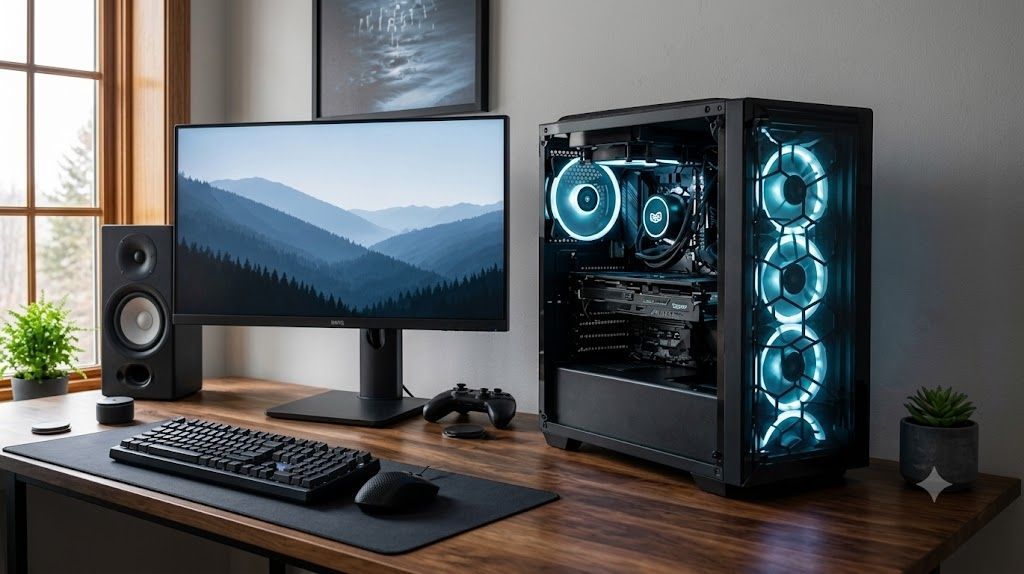
Are you tired of constantly alt-tabbing between spreadsheets, reference documents, and communication apps on a cramped single screen? Upgrading to a dual-monitor workspace is one of the premier ways to supercharge your productivity, elevate your gaming experience, and bring an unrivaled sense of calm and organization to your daily workflow. Yet, for many home users, remote professionals, and passionate gamers, the thought of untangling a rat's nest of wires, dealing with flickering displays, or figuring out mysterious graphics card ports can feel entirely overwhelming.


At Home Net Computer Repair, we believe that technology should empower you, never stress you out. Whether you are building a custom gaming and video editing rig or simply trying to streamline your home office for maximum efficiency, we are here to make the process completely seamless and hassle-free.


In this comprehensive guide, we’ll walk you through our proven, step-by-step approach to setting up a breathtaking dual-monitor workspace: without the headache.

1. Inspect Your Graphics Card and Monitor Ports

Before you even touch a cable, you need to know what you’re working with. Nothing halts a weekend hardware project faster than discovering your new monitor has an HDMI port while your computer only has DisplayPort outputs.


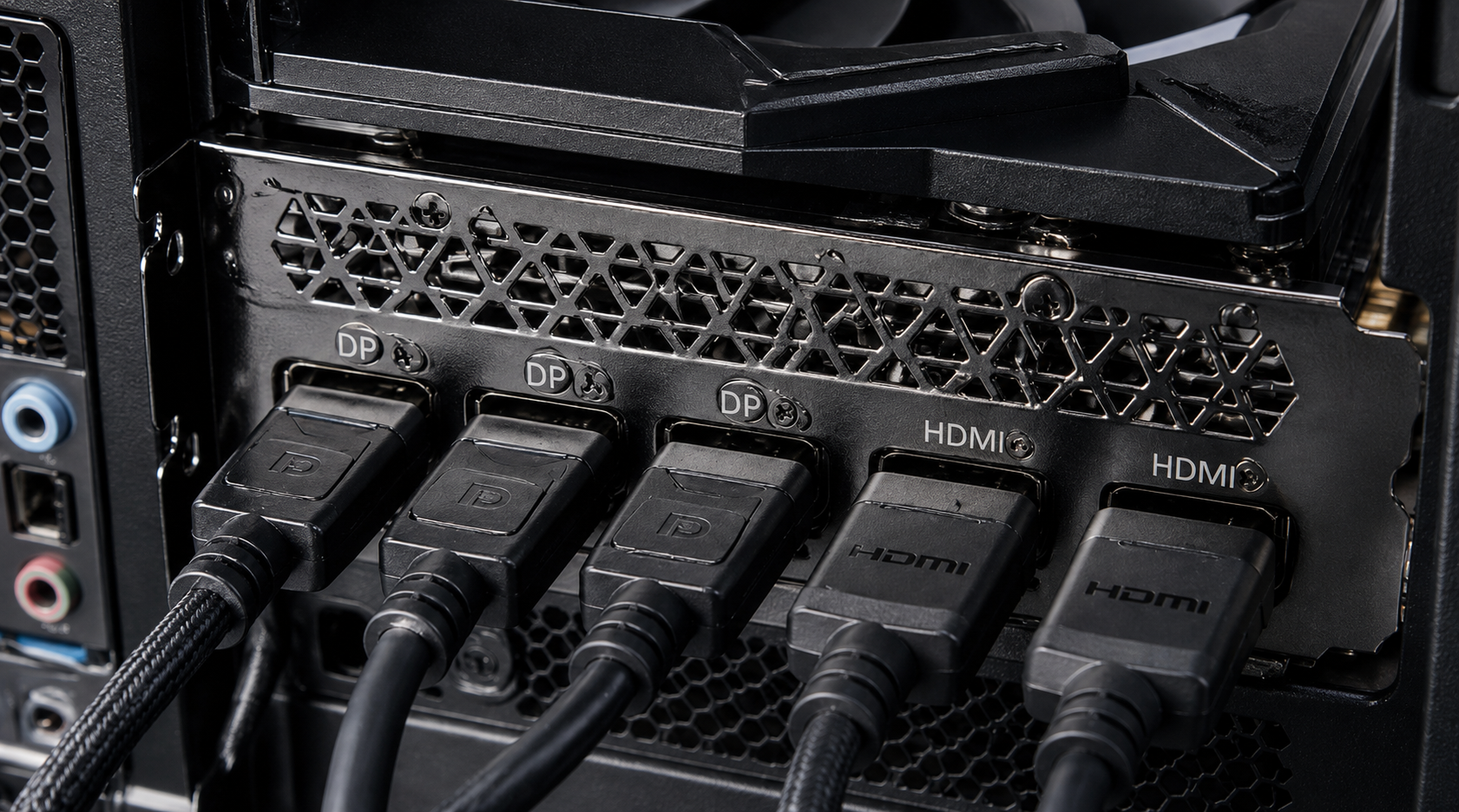
Take a close look at the back of your computer tower: specifically your dedicated graphics card. As a rule of thumb for desktop PCs, always plug both monitors directly into your graphics card, never into the motherboard video ports. This ensures your GPU handles the rendering workload smoothly, preventing frustrating stuttering and driver conflicts.

Most modern graphics cards feature a combination of: 

  •  DisplayPort (DP): The gold standard for modern monitors, supporting high refresh rates and resolutions effortlessly.
  •  HDMI: Universally recognized and fantastic for crisp video and audio transmission.
  • USB-C (with DisplayPort Alt Mode): Increasingly common on modern GPUs and docking stations.
Smiling man in a blue shirt outdoors with a blurred green background

Pro Tip: If your monitor inputs don't match your computer's outputs, don't panic! Quality adapters (such as DisplayPort-to-HDMI cables) can bridge the gap. However, for peak performance and rocksolid reliability, matching native ports whenever possible is always our top recommendation. If you ever feel unsure about your hardware compatibility, our dedicated team is just a phone call away to provide honest, straightforward guidance.

2. Plan Your Physical Placement and Ergonomics

Once your hardware connections are clear, it’s time to think about posture, comfort, and visual flow. A stellar workspace isn't just about high-tech gear; it's about making sure your neck, shoulders, and eyes feel comfortable during long working or gaming sessions. 
Glowing microchip on a blue circuit board with electric light effects

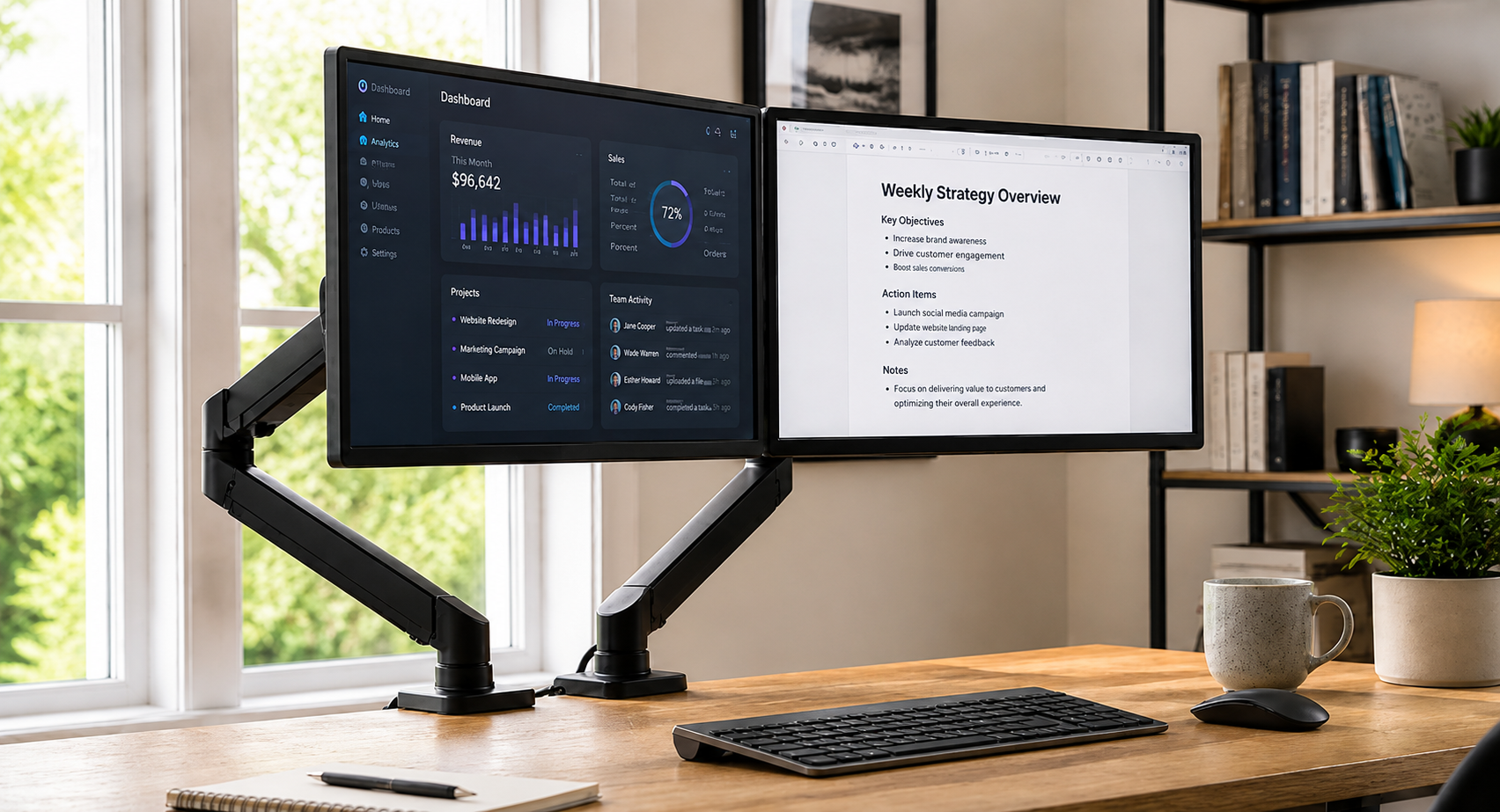
Position your primary monitor directly in front of you so your neck remains in a natural, neutral posture. Place your secondary monitor off to the side (left or right, depending on your preference and desk layout) angled slightly inward toward your natural line of sight. Both displays should sit roughly 20 to 30 inches away from your eyes: about an arm’s length.


If your desk space is limited or you want a truly bespoke, floating aesthetic, consider investing in an ergonomic dual-monitor arm. These mounts lift your screens off the desk surface, freeing up valuable space for your keyboard, mouse, and notepads while offering effortless adjustability.

3. Master the Art of Cable Management

Let’s be honest: the absolute biggest headache of any dual-monitor setup is the cable clutter. Two monitors mean two power cords, two video cables, plus all your existing peripheral connections. Left unmanaged, your beautiful desk can quickly transform into a tangled jungle of wire.

Achieving a clean, professional finish comes down to planning a single, unified path for your cables:
Glowing microchip on a blue circuit board with electric light effects

1. Unplug and Clear: Start from zero. Lay every cable out flat and discard any obsolete or frayed wires.

2. Group by Type: Separate your power cables from your video and USB cables using Velcro ties. Grouping similar wires makes troubleshooting effortless down the road.

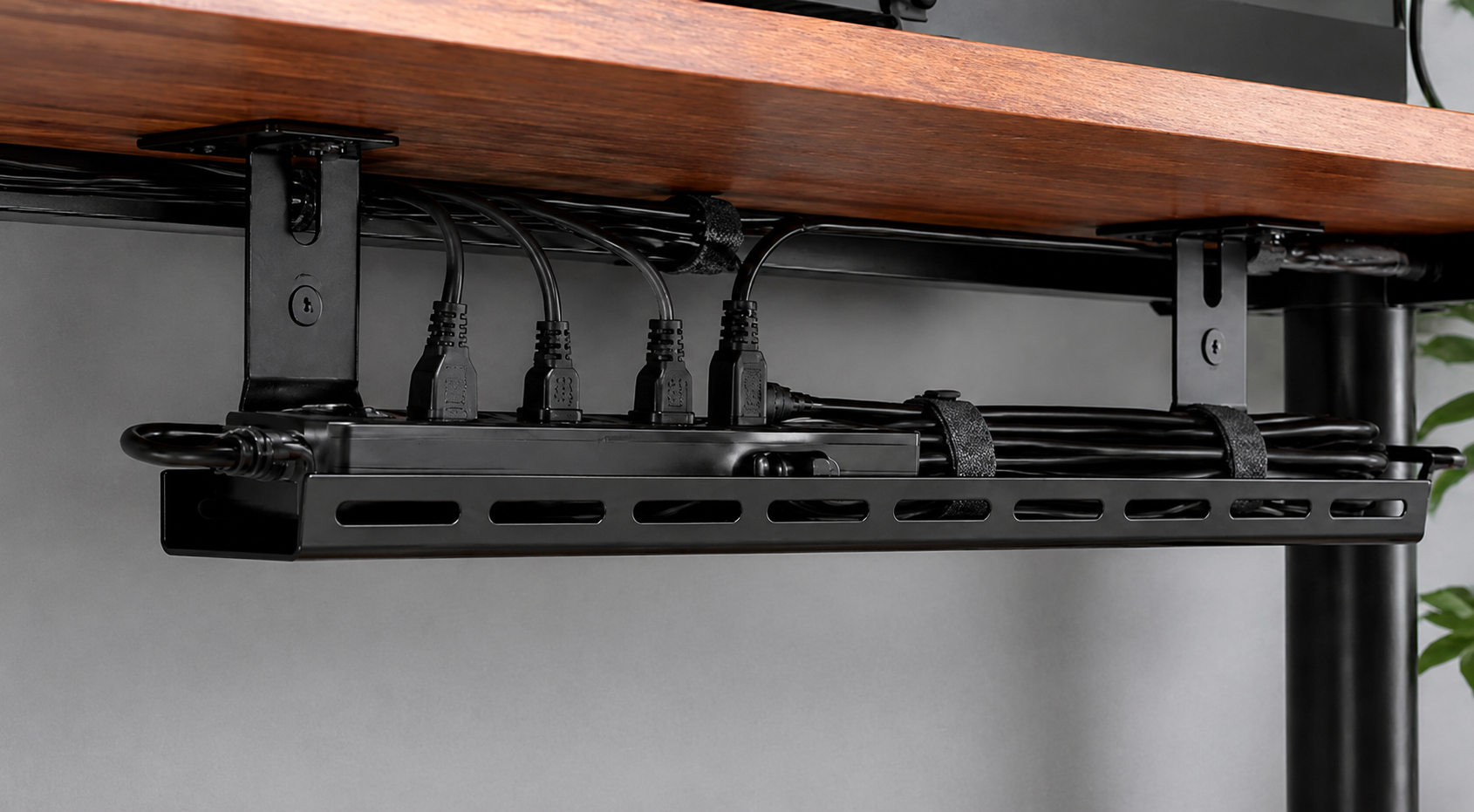
3. Establish a Central Hub: Mount an under-desk cable tray along the rear edge of your workspace. Place your power strip inside this tray so power bricks and excess slack stay completely off the floor.

By routing your monitor cables together through your monitor arm channels or a J-channel raceway, and dropping them neatly into a single vertical sleeve down to your PC, you create an enduring, pristine look that inspires focus and productivity.

4. Configure Your Display Settings in Your OS

With everything physically connected, powered on, and neatly tucked away, the final step is telling your operating system how to handle your new dual-screen landscape.

1. Right-click your desktop and select Display Settings (Windows) or open Displays in System Preferences (macOS).

2. Click Identify to see numbers appear on your screens. Drag and drop these virtual display rectangles in your settings menu to match your physical desk layout. If monitor 2 is on your right physically, make sure it is positioned to the right on your screen.

3. Set your display mode to Extend these displays so you have independent workspace on each monitor. 

4. Adjust your resolution and text scaling to ensure crisp text and comfortable viewing across both panels. 

Let Us Help You Build Your Dream Workspace 

Setting up a dual-monitor workstation should be an exciting upgrade, not a frustrating chore. If you run into stubborn driver issues, need help choosing the right components for a custom build, or simply want a professional touch to handle the installation from start to finish, Home Net Computer Repair is here for you.


As a family-owned business deeply committed to our community, we pride ourselves on clear upfront pricing, top-quality parts, and personalized solutions tailored precisely to your budget and needs. We even offer convenient pick-up and return service so you don't have to lift a finger.


Ready to transform your computer experience? Get in touch with us today and let our expert team bring effortless reliability and peak performance right to your doorstep!


By Adrian T September 4, 2026
There is nothing quite like the rush of powering on a brand-new gaming rig for the first time. The fans spin up to life, vibrant RGB glows through tempered glass, and your favorite titles load in the blink of an eye. But if you peer behind that gorgeous glass side panel: or look down at the tangle of wires pooling beneath your desk: does the magic fade a little? We completely understand. A messy web of cables isn't just an eyesore; it chokes vital airflow, traps frustrating dust bunnies, and turns routine component upgrades into an absolute headache. At Home Net Computer Repair , we believe that building or owning a premier gaming rig should be a seamless, stress-free experience from start to finish. Whether you're assembling a dream machine from scratch or looking to revitalize your current battle station, mastering cable management is the ultimate secret to achieving peak performance, enduring reliability, and a truly professional aesthetic. Let’s dive into our comprehensive guide on how to cable manage your gaming PC like an industry expert.
September 2, 2026
There is a very specific kind of panic that sets in when your computer screen suddenly turns into an unmoving digital statue. You click frantically, you tap the spacebar, you whisper sweet nothings to the monitor: and nothing happens. The cursor mocks you by staying frozen in place, or worse, the dreaded spinning wheel of doom takes over your desktop. If you are currently staring at a locked-up screen wondering, "Why is my computer frozen, and what on earth do I do now?" take a deep breath. You are in good company, and more importantly, you are in safe hands. Here at Home Net Computer Repair , we believe that technology should empower your day, not stall it. Whether you are working on an important presentation, managing your household budget, or settling in for a relaxing evening of gaming, a sudden freeze can feel like a major roadblock. In this comprehensive guide, we are going to walk you through our proven, stress-free methods to safely unstick your computer, restore peak performance, and get you back to what matters most.
September 1, 2026
There is nothing quite as frustrating as lining up the ultimate shot, executing a flawless combo, or making a game-winning push in your favorite competitive multiplayer game, only for a sudden lag spike to freeze your screen. In a split second, your character is eliminated, your team is defeated, and you are left staring at your monitor wondering what went wrong. If you have ever experienced this heart-sinking moment, you know that your gaming experience relies on more than just high-end hardware and lightning-fast reflexes, it depends entirely on the quality and stability of your network connection. Here at Home Net Computer Repair , we spend our days building custom rigs, optimizing systems, and helping local gamers across our community achieve peak performance. One of the most common questions we hear from passionate players is: Should I plug in an Ethernet cable, or is modern Wi-Fi good enough for gaming? To help you make the best decision for your setup, we are breaking down the technical realities of Ethernet versus Wi-Fi, examining how latency, jitter, and packet loss affect your gameplay, and sharing our professional recommendations for a seamless, stress-free gaming experience.
August 30, 2026
Have you ever experienced that heart-dropping moment when your screen freezes, your computer refuses to boot, or an essential document vanishes into the digital ether? We have all been there, staring blankly at a monitor and wondering if years of family photos, critical tax documents, and cherished projects are gone forever. It is an unnerving feeling that no home user, gamer, or small business owner should ever have to endure. At Home Net Computer Repair, we believe that safeguarding your digital life should feel effortless, dependable, and completely stress-free. While data disasters can strike without warning: whether from unexpected hardware failure, a stealthy malware infection, or simply an accidental click: you don't have to live in fear of losing your memories. By establishing a robust, automated backup routine, you can truly "set it and forget it," ensuring your precious files are protected around the clock with unrivaled peace of mind. In this comprehensive guide, we will walk you through the premier methods for automating your backups on both Windows and macOS, share industry-proven best practices, and explain how our family-owned team can help you build an impenetrable safety net for your technology.
August 28, 2026
Have you ever pressed your power button, only to be met with absolute, eerie silence: or worse, a chaotic loop of random reboots that leaves you staring at a blank screen in disbelief? When your computer starts acting up in mysterious ways, it’s easy to point the finger at a failing hard drive or a glitchy Windows update. But what happens when the heart of your system: the motherboard: begins to give out? At Home Net Computer Repair , we know how stressful and disruptive tech trouble can be when you rely on your PC for work, gaming, or staying connected with loved ones. As your knowledgeable neighborhood tech experts, we believe in taking the mystery out of computer hardware. Today, we are exploring the top indicators of motherboard failure, how to diagnose them, and why you don't have to face technical headaches alone.
August 27, 2026
Few moments in the digital age induce quite the same level of sudden panic as pressing your power button only to be greeted by a black screen, an endless boot loop, or an ominous error message. When your storage drive gives up the ghost, your first thought is rarely about hardware architecture, it is about your irreplaceable family photos, critical tax documents, bespoke video editing projects, and years of cherished memories. If you are currently facing this heart-dropping scenario, take a deep breath. You might be asking yourself: Can you recover files from a dead SSD? The short answer is a resounding yes in many cases, but the path to recovery depends heavily on whether your drive is experiencing a logical glitch or a catastrophic hardware failure. At Home Net Computer Repair, we believe that technology should empower your life rather than stress you out. As your knowledgeable neighborhood tech partner, we are here to provide clear, honest guidance, transparent pricing, and stellar, stress-free solutions. Let's walk through how to diagnose the situation, what you can safely do at home, and when it's time to let our dedicated family team step in with our premier pick-up and return service.
Neon-lit gaming PC setup with glowing RGB fans and a red “GAME ON” sign
August 26, 2026
Have you ever noticed your favorite machine sounding a bit like a jet engine during a routine web browsing session, or perhaps lagging just when you need it most? We’ve all been there, staring at a frozen screen, wondering why our trusty digital companion is suddenly moving at a snail's pace. Dust accumulation, thermal throttling, and cluttered operating systems are often the silent culprits behind these frustrating hiccups. At Home Net Computer Repair, we believe that maintaining your technology shouldn't feel like an overwhelming chore. As your knowledgeable neighborhood tech partner, we’re dedicated to bringing you stress-free, seamless computing experiences. Whether you are running a bespoke gaming rig, managing a busy small business, or simply keeping in touch with loved ones, establishing a proven maintenance schedule is the secret to unlocking peak performance and ensuring long-lasting durability. Let’s dive into our comprehensive guide on how often you should clean your computer, both inside and out, and how a little routine care keeps your hardware running at its absolute best.
August 25, 2026
Have you ever stared at your monitor while your computer freezes mid-task, wondering if the only cure is to wipe the slate completely clean? It’s a familiar frustration for many home users, gamers, and local business owners across our Pacific Northwest communities. When your machine starts acting up: throwing mysterious error codes, lagging during crucial video rendering, or taking an eternity to boot: the age-old recommendation often echoes through online forums: "Just reinstall Windows!" But is a full operating system wipe truly necessary every time your PC hits a snag? At Home Net Computer Repair, we believe in transparent, honest diagnostics rather than reaching for drastic measures right away. As your knowledgeable neighbor down the road, our goal is to deliver a stress-free, seamless experience that saves you time and protects your cherished files. Let’s explore when hitting refresh on your operating system is an absolute game-changer, and when you can safely skip the hassle entirely.
August 24, 2026
Have you ever settled in for a relaxing evening of high-end gaming or opened your video editing suite to finish a premier project, only for your computer to suddenly sound like a roaring jet engine before crashing to a black screen? That sinking feeling of frustration is all too familiar. When your machine unexpectedly shuts down or stutters during peak performance, you are likely dealing with a classic and stressful culprit: CPU overheating. At Home Net Computer Repair, we believe that technology should empower your daily life, not add anxiety to it. As your friendly, family-owned neighborhood tech experts, we are committed to making your digital experience completely seamless and stress-free. Whether you are running a bespoke gaming rig, a high-performance content creation workstation, or a reliable family desktop, keeping your processor at peak performance is essential for long-lasting durability. Let's dive into why your CPU might be running dangerously hot, how you can diagnose the issue, and what proven, transparent steps you can take to bring temperatures back down to earth.
August 21, 2026
It happens when you least expect it. You click a suspicious link in an email, download a file from an unverified source, or browse to a site that looks just a little too good to be true. Suddenly, your screen freezes, warning pop-ups flood your display, and a cold wave of dread washes over you: Did a virus just completely destroy my computer? If you are currently holding your breath wondering whether your machine is toast, take a deep breath. At Home Net Computer Repair , our family-owned team has seen it all. As your knowledgeable neighborhood tech experts, we are here to clear away the fear, separate internet myths from engineering facts, and provide you with a stress-free, crystal-clear understanding of what malware can: and cannot: do to your precious hardware.